.png?width=350&height=78&name=Black-on-Transparent_GlassHouse-Logo%20(1).png)
💡 What It Is & Why It Matters
Reveal is where you search, filter, and select properties to create Prospect Groups for outreach.
It’s your starting point for identifying opportunities — define your target area, control what appears on the map, and build a focused audience before moving into Outreach.
🔍 Apply Filters
Filters control what appears on the map and what gets included in your selection.
Use Filters to refine your results before selecting an area.
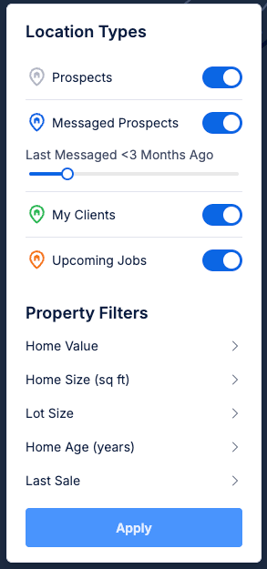
Location Types
Prospects (Gray) — properties that belong to a Prospect Group but have not been messaged yetToggle each type on or off depending on what you want to see.
Property Filters let you narrow your audience based on:
Home Value
Home Size
Lot Size
Home Age
Last Sale Date
💡 Tip: Filters work in draft mode—changes are not applied until you click Apply. Properties with a recent outbound message appear as Messaged Prospects. If that layer is hidden, those properties automatically appear as Prospects so they remain visible on the map.
🧭 Select an Area

- Draw — outline a custom area
- Select Neighborhood — use predefined neighborhood boundaries
- Pick on Map — click directly on the map
- Search Bar — enter an address to center the map
- You can build your selection in one area or across multiple areas
- Click Clear Search to reset your current selection
💡 Group Counts are estimates and may change after deduplication and exclusions.
👥 Build Your Prospect Group
Click Add to Prospect Group to stage your selections before creating.
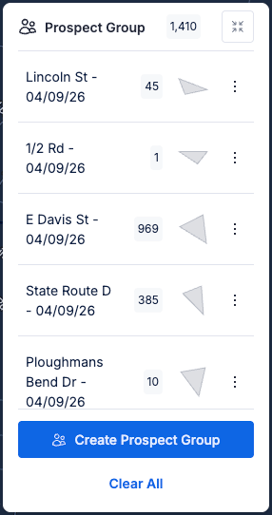 This is where your selections come together before creating the final group.
Each selection appears in the right-side panel
Combine multiple selections into a single Prospect Group
Review counts for each selection before creating the group
Use the three dots (⋮) to:
Rename a selection
Remove a selection
Create Prospect Group
A confirmation message will appear
Select View in → Outreach to access the group
❌ Clear All - Selecting Clear All will remove all staged selections.
⚠️ This action cannot be undone.
📋 More Panel
The More menu provides quick access to additional map information.p.
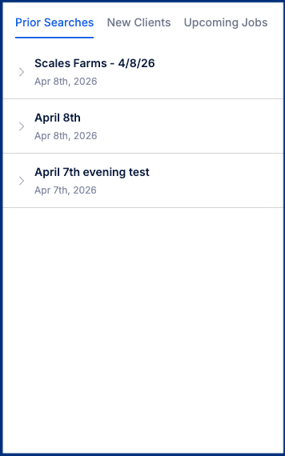 Prior Searches
View previously created Prospect Groups and expand each one to see the individual map selections used to create it.
- Expand to view individual selections and counts
- Click to redraw boundaries on the map
View recently added clients and click a client to center the map on their property.
Upcoming Jobs
View upcoming jobs and click a job to center the map on the job location.
Click a selection to redraw its boundary on the map. Reveal automatically adjusts the zoom level to provide a better view of the selected area.
⚠️ Important Notes & FAQs
| Question / Topic | Answer |
|---|---|
| Why is my final Prospect Group count different from the estimate? | The estimate is an approximation. Final counts reflect exclusions and deduplication performed during creation. |
| What happens if I don't have enough credits? | You'll see how many additional credits are needed and have the option to contact Sales. |
| Do my staged selections disappear if I leave the page? | No. Staged selections are saved locally until you create or remove them. |
| Will I be charged again for contacts already in another Prospect Group? | Not if the second Prospect Group is created within 30 days. After 30 days, credits are charged according to your plan. |
| Can a contact belong to multiple Prospect Groups? | Yes. GlassHouse automatically manages outreach eligibility and compliance. |
| Is there a limit to how many selections I can combine? | Individual selections are limited to 2,000 properties, with a maximum of 10,000 properties per Prospect Group. |
| Why did a blue pin become gray? | Properties appear as Messaged Prospects while that layer is enabled. If you hide the Messaged Prospects layer, those properties automatically appear as Prospects so they remain visible on the map. |
| Do Prospect pins update automatically? | Yes. Prospect pins refresh automatically after a Prospect Group finishes processing—no page refresh is required. |