.png?width=350&height=78&name=Black-on-Transparent_GlassHouse-Logo%20(1).png)
👥 How to Manage Users and Permissions
Add users, update access levels, and manage existing users in your GlassHouse account.
➕ Add a New User
- Go to Settings > Manage Users.
- Select + Add User.
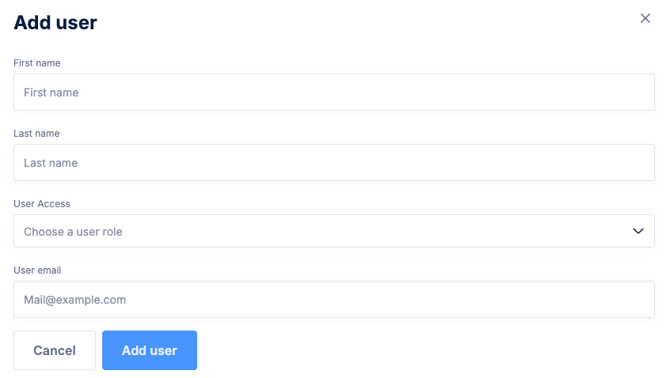
- Enter the user's First Name and Last Name.
- Open User Access and select the role that matches the user's responsibilities.
- Enter the user's email address.
- Select Add User.
The user will receive an email prompting them to create their login credentials.
Tip: If the invitation isn't received within one hour, have the user check their spam or junk folder and confirm the email address is correct. Contact GlassHouse if the invitation needs to be resent.
🔄 Update a User's Access
Billing Administrators can update the access level of existing users.
- Go to Settings > Manage Users.
- Locate the user you want to update.
- Select the ⋯ menu at the end of the user's row.
- Select Update.
- Open User Access and select the new role.
- Select Update User to save your changes.
If the updated permissions aren't immediately visible, refresh the page. If needed, sign out and back in.
🚫 Deactivate a User
When someone should no longer have access to your organization:
- Go to Settings > Manage Users.
- Locate the user.
- Select the ⋯ menu.
- Select Deactivate.
To view users whose access was previously removed, turn on Show Deactivated.
🔐 User Statuses
| Status | What It Means |
|---|---|
| Invited | The invitation has been sent, but the user hasn't completed account activation. |
| Active | The account is active and the user can access GlassHouse based on their assigned role. |
| Deactivated | The user's access to the organization has been removed. |
💡 Important Notes
| Password help | Users who forget their password should use the password-reset option on the GlassHouse login screen. |
| Invitation help | Contact GlassHouse if an invitation needs to be resent. |
| Role changes | Billing Administrators can update existing users and their access levels. |
| Billing Administrator access | Only assign this role to someone authorized to purchase credits, manage billing, and control account access. |
| Limited access | Use View-Only or Responder when broader account access isn't needed. |