.png?width=350&height=78&name=Black-on-Transparent_GlassHouse-Logo%20(1).png)
💳 Before You Begin
Only an authorized Billing Administrator can purchase, transfer, or manage credits.
If you are not an authorized user, you will see a message stating that only a Billing Administrator can complete the action.
Contact sales@glasshousepro.com if you need to confirm or update the authorized user for your organization.
🛒 Purchase Additional Credits
Open Credit Management
- Select your credit balance in GlassHouse.
- Select the blue Buy Credits button.
.png?width=670&height=389&name=CleanShot%202026-09-11%20at%2010.53.07@2x%20(3).png)
Complete Your Purchase
- Select the number of credits you want to purchase.
- Review the purchase details.
- Confirm the purchase using the payment method already on file.
The purchased credits will be added to the selected organization.
🔄 Set Up Automatic Refills
Automatic refills help prevent your campaigns from stopping when your available credit balance becomes too low.
Choose Your Refill Settings
- Open the credit-management options from your Credit Balance page.
- Turn on Automatic Refill.
- Choose the minimum balance that will trigger a refill.
- Select the number of credits you want added each time.
- Authorize the automatic payment for Automatic Refill.
- Review and save your settings.
When your balance falls below the selected minimum, GlassHouse will automatically purchase the refill amount using the payment method on file.
🔀 Transfer Credits Between Organizations
Billing Administrators who manage more than one eligible organization can transfer available credits between those organizations.
Transfer Available Credits
- Open the credit-management options from your Credit Balance page.
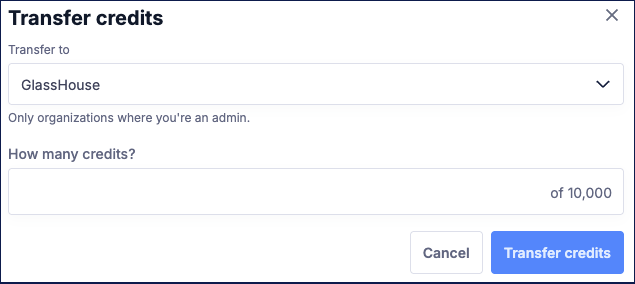
- Select the option to transfer credits.
- Choose the organization receiving the credits.
- Enter the number of credits you want to transfer.
- Review the transfer details and confirm.
The transferred credits will be deducted from the originating organization and added to the receiving organization.
⚠️ Important Notes
| Important Note | Details |
|---|---|
| Billing Administrator required | Only an authorized Billing Administrator can purchase credits, manage automatic refills, or transfer credits. |
| Payment method | Credit purchases and automatic refills use the payment method already on file. |
| Available credits only | You can only transfer credits that are currently available in the originating organization. |
| Eligible organizations | Credit transfers are available when you are an authorized administrator for more than one eligible organization. |
| Review before confirming | Confirm the organizations and credit amount before completing a transfer. |
❓ Frequently Asked Questions
| Question | Answer |
|---|---|
| Why don’t I see the Buy Credits button? | The blue Buy Credits button is only available to authorized Billing Administrators. Contact sales@glasshousepro.com to confirm or update your organization’s authorized user. |
| Which payment method will be charged? | Credit purchases and automatic refills use the payment method already on file for the organization. |
| Can I choose when credits are automatically added? | Yes. You can select the minimum balance that triggers the refill and the number of credits added each time. |
| Can I transfer credits to any organization? | Transfers are limited to eligible organizations for which you are an authorized administrator. |
| Will transferring credits charge the payment method on file? | No. A transfer moves available credits from one eligible organization to another. It does not purchase new credits. |
| What should I do if I cannot manage credits? | Contact sales@glasshousepro.com to confirm that you are the authorized Billing Administrator. |
💬 Need Help?
If you have questions about purchasing credits, automatic refills, transfers, or billing permissions, contact your GlassHouse team for assistance.