.png?width=350&height=78&name=Black-on-Transparent_GlassHouse-Logo%20(1).png)
💡 What It Is
The ServiceMinder integration allows GlassHouse to automatically sync customer records from your ServiceMinder account. Once connected, your customer jobs and invoices will stay up to date without manual imports. You can also choose to automatically push Hot Leads from GlassHouse to ServiceMinder as contacts.
⚙️ How to Connect
Obtain Your ServiceMinder API Key
- Log in to your ServiceMinder account.
- Generate or obtain your API Key.
- Copy the API Key and keep it available for the next step.
Open Integrations in GlassHouse
- Navigate to Settings → Integrations.
- Select ServiceMinder.
Connect Your Account
- Paste your API Key into the required field.
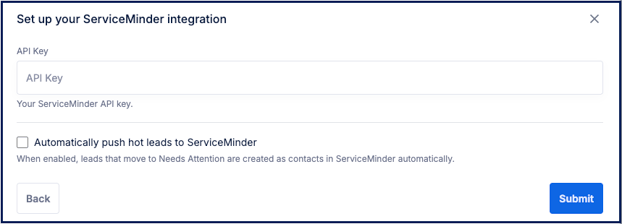
- (Optional) Enable Automatically push Hot Leads to ServiceMinder if you'd like leads moved to Needs Attention in GlassHouse to be created as contacts in ServiceMinder.
- Select Connect.
- GlassHouse will automatically validate your credentials.
Run Your First Sync
- Select Sync to begin importing your data.
- Allow a few minutes for the initial sync to complete.
- Verify your customer records appear in GlassHouse.
🙋 FAQs
| Question | Answer |
|---|---|
| How often does the data sync? | After the initial connection, GlassHouse automatically syncs new and updated customer data every 2 hours. |
| Where do I get my API Key? | Generate or obtain your API Key from your ServiceMinder account. |
| What happens when I enable Hot Lead syncing? | Leads moved to Needs Attention in GlassHouse are automatically created as contacts in ServiceMinder. |
| Can I import historical records? | Yes. Use the Sync From Date option when available to import older records. |
📌 Important Notes
| Note | Details |
|---|---|
| API Key Required | A valid ServiceMinder API Key is required to connect the integration. |
| Credential Validation | Credentials are verified during setup to ensure a successful connection. |
| Hot Lead Sync | When enabled, leads moved to Needs Attention are automatically created as contacts in ServiceMinder. |
| Automatic Syncing | After the initial connection, GlassHouse automatically syncs new and updated customer data every 2 hours. |
| Sync From Date | Use the Sync From Date option to import historical records when available. |
🛠️ Troubleshooting
| Issue | Possible Cause | Resolution |
|---|---|---|
| Unable to connect | Invalid API Key | Verify your API Key and reconnect the integration. |
| No records appear after syncing | Initial sync still processing | Allow additional time for the initial sync to complete. |
| Hot Leads aren't appearing in ServiceMinder | Hot Lead syncing is disabled | Enable Automatically push Hot Leads to ServiceMinder and verify the lead has moved to Needs Attention. |
| Sync fails | API Key has been revoked or changed | Generate or obtain a new API Key and reconnect the integration. |